Embed an agent on your website
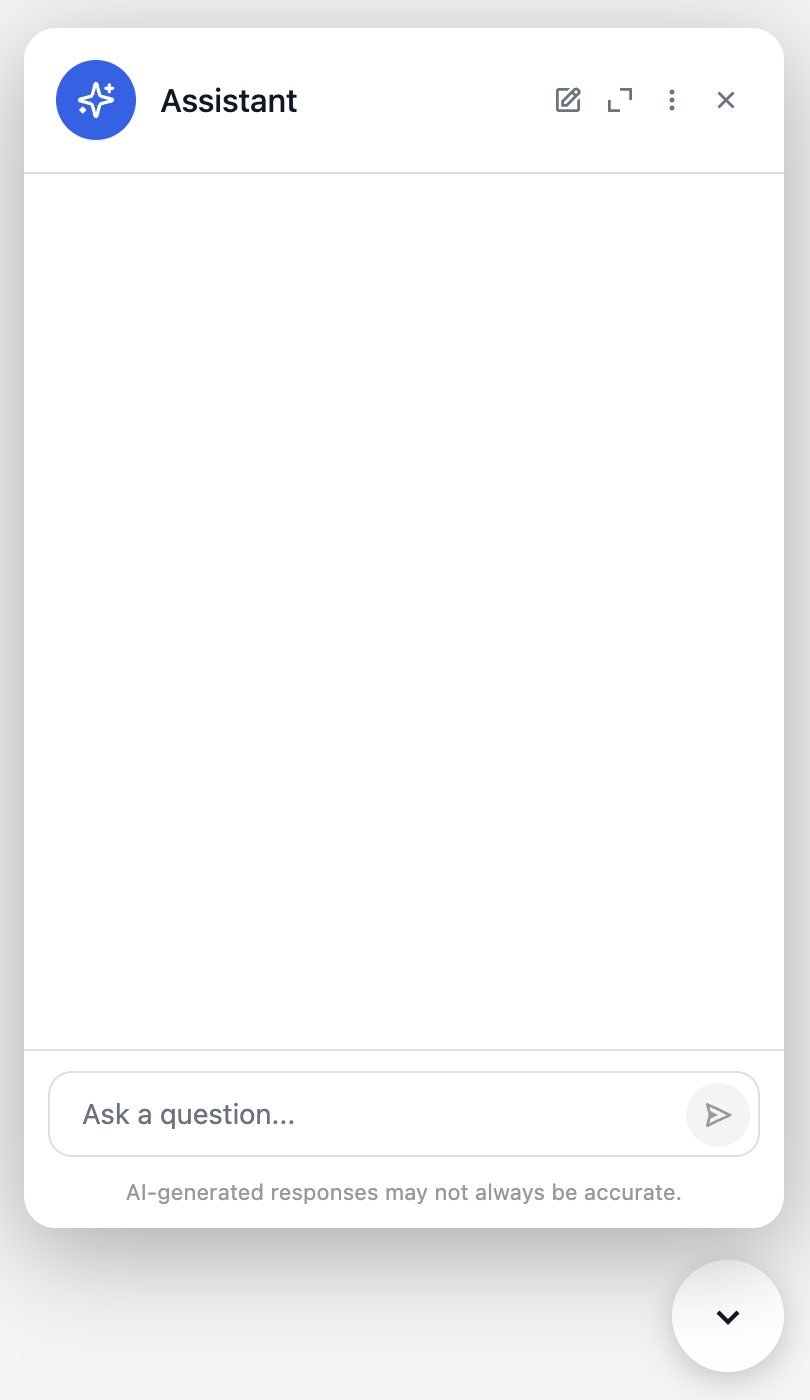
Use a widget connector to add an embeddable chat user interface to your website. Configure its appearance and access settings in the Vectara Console, then copy the generated script into your page.
This guide covers the Console's Widget option, which configures Popup Agent Chat, and walks through setup for anonymous visitors. The separate API option uses free-form presentation JSON; it is not the visual widget configuration flow described here.
Before you begin
You need:
- An agent you have tested with representative questions.
- An agent alias with a routing policy targeting the intended agent.
- Access to configure connectors on that alias in the Console.
- A website page whose HTML you can edit, and the origin from which you will test it.
The agent defines behavior, the alias routes new sessions to an agent, and the widget connector holds the widget's presentation and access configuration. Create the connector on the alias, not on the agent's settings page.
This walkthrough enables anonymous visitors. Review the agent's instructions, tools, and accessible data before making it available this way. If your application requires identified users, review End-user sign-in instead of enabling public access just to make the widget appear.
Configure the widget
-
Open the alias in the Console and select its Connectors tab.
-
Select Create connector, then Widget / Publish as a widget.
-
In General, name the connector. The widget type is Popup Agent Chat.
-
Configure the presentation using the following steps:
Step What you configure Branding Display name, logo, and colors. Launcher The bubble that opens the chat panel. Chat panel User interface size, features, composer, and footer. Welcome Greeting and suggested prompts. -
In Access, enable Public access for this anonymous-visitor walkthrough. A new widget's public-access setting is off by default.
-
Set Allowed origins for the website where you will embed and test the widget. The form accepts origins such as
https://example.comorhttps://*.example.com. An empty list allows any site. -
Review Advanced, which contains event visibility, session, and metadata settings. See End-user sessions for the shared session and identity model.
-
Select Publish. In Finish setup, copy the generated embed snippet.
Requests without an Origin header are admitted by the origin check. Do not use
Allowed origins as a substitute for identifying users or deciding whether
anonymous visitors should have access.
Embed the generated snippet
Use the snippet copied from Finish setup so its alias key, connector ID, and API host match your configuration. Its structure is:
<script
  type="module"
  async
  src="https://widgets.vectara.com/v1/popup-agent-chat/popup-agent-chat.js"
  data-agent-alias="YOUR_ALIAS_KEY"
  data-connector-id="YOUR_CONNECTOR_ID"
  data-api-host="YOUR_API_HOST"
></script>
The YOUR_... values above are placeholders, not working configuration. Prefer
copying the complete generated snippet rather than reconstructing it. The snippet
does not contain an operator API key; do not add one to your page.
Verify on your website
A Console preview is not a substitute for testing the embedded widget against your agent. On the intended website origin:
- Confirm that the browser loads the script without network or content-security-policy errors.
- Confirm that the launcher appears and opens the chat user interface.
- Send a representative question and verify that you receive an appropriate reply.
- Check the configured branding and welcome content on the embedded page.
Test the actual access mode you intend to offer. A successful anonymous test does not validate your application's sign-in integration.
End-user sign-in
The End-user sign-in field selects a trusted token issuer whose tokens identify end users. This is separate from the credentials an operator uses to manage agents and connectors, and from credentials a tool uses to call an external service.
For the identity, token, and session model, see End-user sessions. The anonymous walkthrough above is not a sign-in integration guide. Do not enable Public access as a workaround for an incomplete authenticated integration.
Troubleshooting
| Symptom | What to check |
|---|---|
| The script does not load | Inspect the browser's network and content-security-policy errors for the script URL in the generated snippet. |
| The widget stays hidden | Check whether Public access is enabled for anonymous visitors. For identified users, check the application's sign-in integration rather than enabling anonymous access as a workaround. |
A request returns 403 | Read the response and inspect the request's Origin against Allowed origins. Also check the intended access mode; do not assume every 403 has the same cause. |
| Appearance looks right, but a conversation does not work | Verify the generated alias key, connector ID, and API host, then check the alias's routing policy and inspect the failed request. |